How to Apply the April 2026 Patch Tuesday Updates: Protect Against Zero-Days and Critical Vulnerabilities
Introduction
The April 2026 Patch Tuesday brings a record-breaking wave of updates from Microsoft, Google, and Adobe. With 167 vulnerabilities fixed in Microsoft software alone—including a SharePoint Server zero-day (CVE-2026-32201) and the publicly disclosed 'BlueHammer' privilege escalation bug in Windows Defender—the urgency to patch is high. Separately, Google Chrome addressed its fourth zero-day of 2026, and Adobe issued an emergency fix for a actively exploited flaw (CVE-2026-34621) that could lead to remote code execution.

This step-by-step guide walks IT administrators and power users through the process of applying all critical updates, ensuring your systems are secure against ongoing attacks. Follow each step carefully, and don't forget to reboot where necessary.
What You Need
- Administrative privileges on all Windows machines to install updates.
- Windows Update configured to receive patches (or access to WSUS / SCCM for enterprise environments).
- Google Chrome installed (or any Chromium-based browser).
- Adobe Acrobat Reader (or Adobe Reader) version 2025.001.20436 or earlier.
- Backup software to create a system restore point or full backup before applying patches.
- Internet connection to download updates.
- At least 30 minutes of quiet time (more for large deployments).
Step-by-Step Instructions
Step 1: Prepare Your Environment
Before applying any updates, take a system snapshot or create a full backup. This ensures you can roll back if a patch causes unexpected issues. For Windows, use System Restore or third-party imaging tools. For critical servers, schedule a maintenance window and notify users of expected downtime.
Tip: Test patches on a non-production machine first if possible.
Step 2: Apply Microsoft's April 2026 Patch Tuesday Updates
Microsoft released fixes for 167 vulnerabilities, including two that are actively exploited: the SharePoint Server spoofing bug (CVE-2026-32201) and the Windows Defender privilege escalation flaw known as 'BlueHammer' (CVE-2026-33825). Here's how to install them:
- Open Settings > Update & Security > Windows Update.
- Click Check for updates.
- Select the April 2026 Cumulative Update (KB number will vary by Windows version) and any associated updates for SharePoint Server, .NET Framework, and Windows Defender.
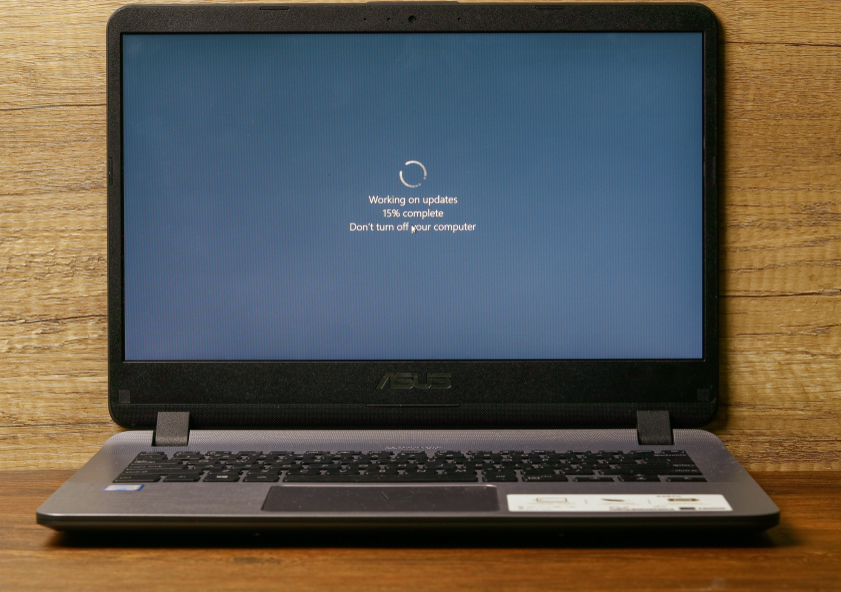
- Click Install now and allow the process to complete. A restart may be required—plan accordingly.
- For enterprise environments with WSUS or SCCM, approve the updates in your management console and push them to target device collections.
Why this matters: According to Mike Walters, president of Action1, CVE-2026-32201 lets attackers “deceive employees, partners, or customers by presenting falsified information within trusted SharePoint environments.” The active exploitation increases organizational risk significantly. On the plus side, Will Dormann of Tharros confirmed that the public BlueHammer exploit code no longer works after installing today’s patches.
Step 3: Update Google Chrome to Fix the Fourth Zero-Day of 2026
Google patched yet another actively exploited vulnerability in Chrome (details were not specified in our source, but the update is critical). Ensure you're running the latest version:
- Open Chrome and click the three-dot menu (top-right) > Help > About Google Chrome.
- Chrome will automatically check for updates and begin downloading. If an update is available, click Relaunch to apply it.
- After the browser restarts, verify the version at
chrome://version. It should be the latest stable build released on or after April 14, 2026. - For managed devices, use Google Admin Console to force-update all Chrome browsers.
Note: Adam Barnett of Rapid7 observed that nearly 60 of Microsoft’s patched vulnerabilities were in the Edge browser (based on Chromium). While this guide focuses on Chrome, updating Edge is equally important—follow the same steps via edge://settings/help.
Step 4: Install Adobe Reader Emergency Update
Adobe issued an out-of-band patch for CVE-2026-34621, a remote code execution flaw that has been actively exploited since at least November 2025, according to Satnam Narang, senior staff research engineer at Tenable. To protect your systems:
- Open Adobe Acrobat Reader (or Adobe Reader).
- Go to Help > Check for Updates.
- If prompted, download and install the update (version 2026.001.20437 or later).
- Restart Adobe Reader after installation.
- If you manage multiple machines, use the Adobe Admin Console or remote deployment tools to push the update.
Important: This flaw was considered a zero-day and is being actively exploited. Even if you don't use Adobe Reader often, the update must be applied because the vulnerability can be triggered via malicious PDFs.
Step 5: Reboot and Verify All Updates Have Been Applied
A final restart is crucial for Windows updates to complete. After rebooting:
- In Windows, run
wmic qfe list brief /format:tablein Command Prompt (Admin) to list installed patches. Look for the April 2026 cumulative update. - In Chrome, go to
chrome://settings/helpto confirm the latest version. - In Adobe Reader, check Help > About Adobe Acrobat Reader for version 2026.001.20437 or higher.
Adam Barnett noted that the record number of browser patches may be due to AI-driven vulnerability discovery, and we should expect further increases. Staying on top of updates is more critical than ever.
Tips for a Smoother Patching Experience
- Schedule regular patch days: Don't wait for emergencies. Set a monthly cadence aligned with Patch Tuesday.
- Prioritize actively exploited flaws: The SharePoint zero-day, BlueHammer, Chrome zero-day, and Adobe Reader flaw should be installed immediately.
- Test in a sandbox: Deploy the updates to a small group of non-critical machines first to catch any compatibility issues.
- Monitor for new exploits: Even after patching, keep an eye on security feeds; sometimes patches are bypassed.
- Leverage automation: Use tools like WSUS, SCCM, or third-party patch management solutions (e.g., Action1, Automox) to reduce manual effort.
- Educate users: Share information about phishing attacks leveraging SharePoint spoofing and malicious PDFs.
Related Articles
- Fragnesia: New Linux Kernel Flaw Enables Full System Compromise via Privilege Escalation
- Cybersecurity Experts Sentenced to Prison for Role in BlackCat Ransomware Campaigns
- 10 Essential Elements for Crafting a Zero-Trust Network Simulation with Adaptive Policies and Threat Detection
- Critical Command Injection Flaw in TP-Link Routers Actively Exploited by Mirai Botnet
- Ubuntu 16.04 LTS Hits Final End-of-Life: All Security Updates Cease Without Paid Plan
- 8 Critical Insights Into the Massive Canvas Data Breach Disrupting Education Nationwide
- 6 Critical Defenses When AI Supercharges Vulnerability Discovery and Exploitation
- How the BBC Computer Literacy Project Ignited a Generation of Coders