Mastering Qt Designer with Python for Rapid GUI Development
Introduction
Building graphical user interfaces (GUIs) from scratch can be time-consuming, especially when you need to position widgets precisely and connect user interactions to code. Qt Designer, a powerful visual design tool, streamlines this process when paired with Python and PyQt. By understanding how to leverage Qt Designer—from converting visual layouts into .ui files to managing widget geometry with layout managers and connecting signals and slots—you can accelerate your GUI application development significantly.
What Is Qt Designer?
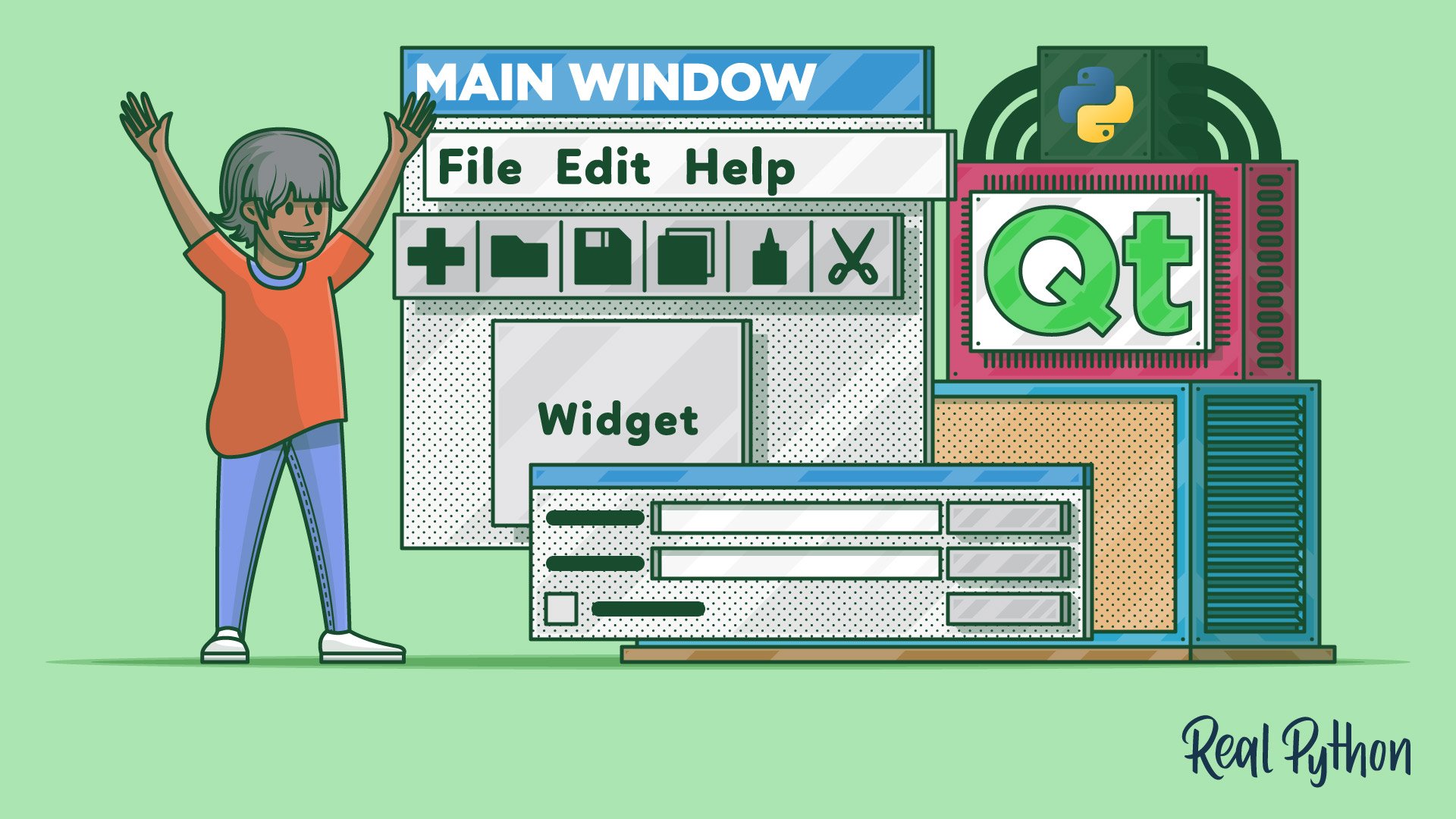
Qt Designer is a drag-and-drop interface designer that allows you to create windows and dialogs visually. Instead of writing hundreds of lines of code to position buttons, labels, and text fields, you arrange them directly in a canvas. The tool then saves your design as an XML-based .ui file, which holds all the information about widget properties, layout, and connections. This file can be loaded into Python applications using PyQt or PySide, serving as a blueprint for your GUI.
Key benefits include:
- Rapid prototyping: Test layouts quickly without recompiling.
- Separation of concerns: Keep design logic separate from application logic.
- Cross-platform consistency: Qt Designer works on Windows, macOS, and Linux.
Converting Visual Designs into .ui Files
When you finish a design in Qt Designer, you save it as a .ui file. This file is essentially an XML document that describes every widget, its properties (like size, text, and object name), and the layout constraints. For example, you might create a login form with two line edits, a button, and labels for username and password. Qt Designer records the exact position and size of each element relative to the form.
To use this design in Python, you have two primary methods: converting the .ui file into a Python class with pyuic5, or loading it dynamically at runtime using uic.loadUi(). Both approaches preserve the layout managers and connections you defined.
Layout Managers Control Widget Geometry
One of the most powerful features of Qt Designer is its use of layout managers. Instead of manually specifying pixel coordinates, you assign layouts (like QVBoxLayout, QHBoxLayout, QGridLayout) that automatically resize and reposition widgets when the window is resized. This makes your GUI responsive and adaptable to different screen sizes.
In Qt Designer, you apply a layout by selecting a group of widgets and choosing a layout type from the toolbar or menu. The tool then adds the appropriate layout manager code into the .ui file. When loaded into a PyQt application, the layout managers ensure that your design remains intact regardless of window dimensions.
Common layout types:
- QVBoxLayout: Arranges widgets vertically.
- QHBoxLayout: Arranges widgets horizontally.
- QGridLayout: Places widgets in a grid of rows and columns.
- QFormLayout: Perfect for label–field pairs.
By mastering these layouts, you eliminate the tedious task of hardcoding geometry and can focus on functionality.
How Signals and Slots Connect User Actions to Your Code
User interaction (like clicking a button or changing text) triggers events. Qt uses a signals and slots mechanism to wire these events to Python methods. In Qt Designer, you can connect a widget’s signal (e.g., a button’s clicked signal) to a slot (a function or method). The connections are saved in the .ui file and restored when the GUI is loaded.

For instance, you might connect a Login button to a slot named on_login_clicked. When the user clicks the button, the slot executes, allowing you to validate credentials or navigate to another screen. This decouples the UI design from the logic, making code cleaner and more maintainable.
You can also connect signals programmatically after loading the UI, which gives you finer control over complex interactions.
Loading .ui Files into a PyQt Application
Once you have your .ui file, you need to bring it into Python. Two widely used methods are:
Method 1: Using pyuic5
The pyuic5 command-line tool converts a .ui file into a Python class file. For example, running pyuic5 main_window.ui -o main_window_ui.py generates a Python module that you can import and instantiate. This approach embeds the entire UI as code, which can be faster at runtime and allows for subclassing. However, any changes in Qt Designer require re-running the conversion.
Method 2: Using uic.loadUi()
Alternatively, you can load the .ui file dynamically at runtime with uic.loadUi() from PyQt5’s uic module. For example:
from PyQt5 import uic, QtWidgets

class MainWindow(QtWidgets.QMainWindow):
    def __init__(self):
        super().__init__()
        uic.loadUi('main_window.ui', self)  # Loads UI into self
This method keeps the design separate from the code, letting you update the UI without touching Python files. It’s especially useful during prototyping.
Both methods fully support layout managers and signal/slot connections defined in Designer. Choose based on your workflow: static conversion for release builds, dynamic loading for iterative development.
Conclusion
Qt Designer, combined with Python and PyQt, transforms GUI development from manual coding into a visual, efficient process. By converting visual designs into .ui files, using layout managers to automatically handle widget geometry, and employing signals and slots to connect user actions to your code, you can build robust applications much faster. Whether you choose pyuic5 or uic.loadUi(), the key is to let the tool handle the tedious parts so you can focus on what matters—building great software.
Start experimenting with Qt Designer today, and watch your GUI development speed soar.
Related Articles
- Go 1.26 Revolutionizes Code Maintenance with Fully Rewritten 'go fix' Command
- Building Trust in a World of Information Overload: A Leader's Guide
- Python 3.15.0 Alpha 5 Rushed Out After Alpha 4 Build Error; New Profiler and UTF-8 Encoding Highlight Preview
- Scaling Harmony: A Developer's Guide to Coordinating Multiple AI Agents
- Apple Issues Urgent Warning: Mac Mini and Mac Studio Supplies to Remain Tight for Months Amid AI-Driven Demand Surge
- Microsoft's CTO Reveals Windows 11 Built on Decades-Old Code: A 'Bedrock' from the 1990s
- Thirteen Critical Vulnerabilities Discovered in vm2 JavaScript Sandbox Library
- Mastering AI Agent Version Control with Cloudflare Artifacts: A Step-by-Step Guide