How to Download and Build Apps for Your Reachy Mini Robot Using Hugging Face's New App Store
Introduction
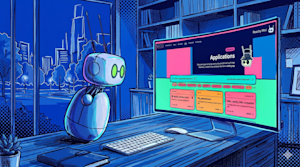
If you own a Reachy Mini—the affordable, open-source desktop robot from Hugging Face—you may have already enjoyed its built-in capabilities. But with the launch of the Hugging Face Reachy Mini App Store, things have gotten even more exciting. This digital storefront, which went live with over 200 community-built applications, lets you expand your robot's skills with just a few clicks. And the best part? You don’t need a background in engineering or coding to use it—or even to create your own apps. This step-by-step guide will show you exactly how to get started, whether you want to download new behaviors or build custom ones from scratch.
What You Need
- A Reachy Mini robot (purchased from Hugging Face or authorized resellers; roughly $299 USD)
- Power supply and USB‑C cable (included with your robot)
- A stable Wi‑Fi connection (for downloading apps and communicating with Hugging Face servers)
- A computer or tablet with a web browser (to access the app store interface)
- A Hugging Face account (free to create at huggingface.co)
- Optional but helpful: a quiet testing space and a willingness to experiment
Step‑by‑Step Instructions
Step 1: Set Up Your Reachy Mini
Before diving into the app store, make sure your robot is properly powered on and connected to your network.
- Plug the power supply into your Reachy Mini and press the power button until the LED lights up blue.
- Use the USB‑C cable to connect the robot to your computer (this is required for the initial network setup).
- Open a web browser and navigate to the setup panel usually available at
http://reachy.local– if that doesn’t work, check your router’s device list for the robot’s IP address. - Follow the on‑screen prompts to connect Reachy Mini to your Wi‑Fi network.
- Once the robot is online, remove the USB‑C cable; the robot will now communicate wirelessly.
Step 2: Access the Hugging Face Reachy Mini App Store
Now that your robot is online, you can browse and download apps.
- Open a browser on your computer or tablet and go to
https://huggingface.co/reachy-mini-app-store(or follow the link from the main Hugging Face site). - Log in with your Hugging Face account. If you don’t have one, click “Sign Up” and follow the simple registration process.
- Upon logging in, you’ll see the app store’s landing page, which highlights featured apps and categories (e.g., “Interaction,” “Games,” “Productivity”).
Step 3: Browse and Download Apps
The store currently hosts over 200 community‑built apps, and all are free to download. No payments or in‑app purchases are required yet.
- Scroll through the gallery or use the search bar to find a specific capability (e.g., “wave detector,” “weather reporter”).
- Click on any app card to view its description, screenshots, and user ratings.
- When you’ve found an app you like, click the “Download” button. The system will automatically prepare the app package for your robot.
- Wait for the download confirmation message—usually takes just a few seconds.
Step 4: Install and Run the App on Your Robot
After downloading, you need to transfer the app to your Reachy Mini and activate it.
- In the same browser window, click on the “My Apps” tab (or go to your account dashboard).
- Find the newly downloaded app in your library and click “Install on Robot”.
- The store will send a command to your Reachy Mini over Wi‑Fi. A progress bar on the screen shows the installation status.
- Once installed, click “Launch” to run the application. Your robot will immediately begin performing the new behavior (e.g., waving when it hears a greeting).
- To stop the app, either press the physical button on the robot or use the “Stop” button in the dashboard.
Step 5: Build Your Own Custom App Using ML Intern
If you want to create something unique—no coding background required—Hugging Face provides an AI‑powered agent called “ML Intern” to assist you.
- From the app store, click the “Create App” button (usually located in the top‑right corner).
- You’ll see a simple text box. In your own words, describe the behavior you want. For example: “When someone says ‘good morning,’ wave your right arm and say ‘Hello, friend!’”
- Click “Generate”. ML Intern will interpret your request, write the necessary code, and even test it in a simulated environment.
- After a few moments, the system will show you a preview of the app’s behavior. You can request tweaks by typing additional instructions, such as “Make the wave slower” or “Add a blinking eye animation.”
- When you’re satisfied, click “Save & Publish”. This makes the app available in your personal library and optionally to the public store (if you choose to share).
- Finally, follow the same installation steps from Step 4 to load your new app onto the robot.
Tips for a Great Experience
- Start with simple prompts. The AI works best when you describe one action at a time. For complex behaviors, break them into multiple apps or sequential steps.
- Use the community. The app store has a rating and comment system. Check what works for others before spending time on your own creation.
- Keep your robot’s firmware updated. Hugging Face periodically releases updates that improve compatibility with new apps. Check the support page for upgrades.
- Experiment freely. Since all apps are free and no money changes hands, there’s no risk in downloading and testing dozens of apps. If one doesn’t work well, simply uninstall it from the dashboard.
- Remember the hardware limits. Reachy Mini is a stationary desktop robot with two arms, camera eyes, a speaker, and a microphone. Avoid prompts that would require mobility or heavy lifting.
- Share your creations. If you build something cool, click the “Publish to Store” option. You’ll help grow the library and get feedback from other robot enthusiasts.
With these steps, you’re ready to unlock the full potential of your Reachy Mini. Whether you’re downloading a ready‑made app or crafting a personalized behavior, the Hugging Face App Store makes robotics as accessible as using a smartphone. Happy tinkering!
Related Articles
- Cisco Acquires Astrix Security to Secure Non-Human Identities in AI Era
- Volkswagen Takes the Lead: How the German Automaker Surpassed Amazon as Rivian's Top Shareholder
- Securing Machine Identities: A Step-by-Step Approach to Non-Human Identity Management
- How to Keep Your AI Agents in the Loop: A Step-by-Step Guide to Implementing Agentic Context Infrastructure
- The AI Agent Security Crisis: How to Govern Identities Before Agents Rewrite Your Policies
- 10 Key Insights Into xAI's Grok 4.3 Launch and New Voice Cloning Suite
- How to Build a Context Graph with Decision Traces for Enterprise AI
- 8 Ways AI Agents Are Reshaping Engineering Teams and Workflows